GuidesOctober 11, 20267 min read
AI can now read an app screenshot and hand back code that runs on a phone. That makes the screenshot you start from the most important input in the whole process. Pick a single marketing shot and you get a pretty, empty shell. Pick the right screens and you get the structure of a feature that already earns money. We worked through real free screens from two revenue-verified apps in the library to show what a screenshot gives you, what you should throw away, and what it can never tell you.
One screen is one state. A feature is several. Look at the summary feature in Plaud(est. $4.25M/mo). The first screen is an empty state: a transcript tab, playback controls and a “Ready to generate” message above a black Generate button. The second is a template picker, a two-column grid of cards with one pinned “Generate note” button at the bottom. The third is a loading state with skeleton lines and a line of copy saying generation continues if you leave the page. Feed a tool only the first screen and it has no idea the other two exist.
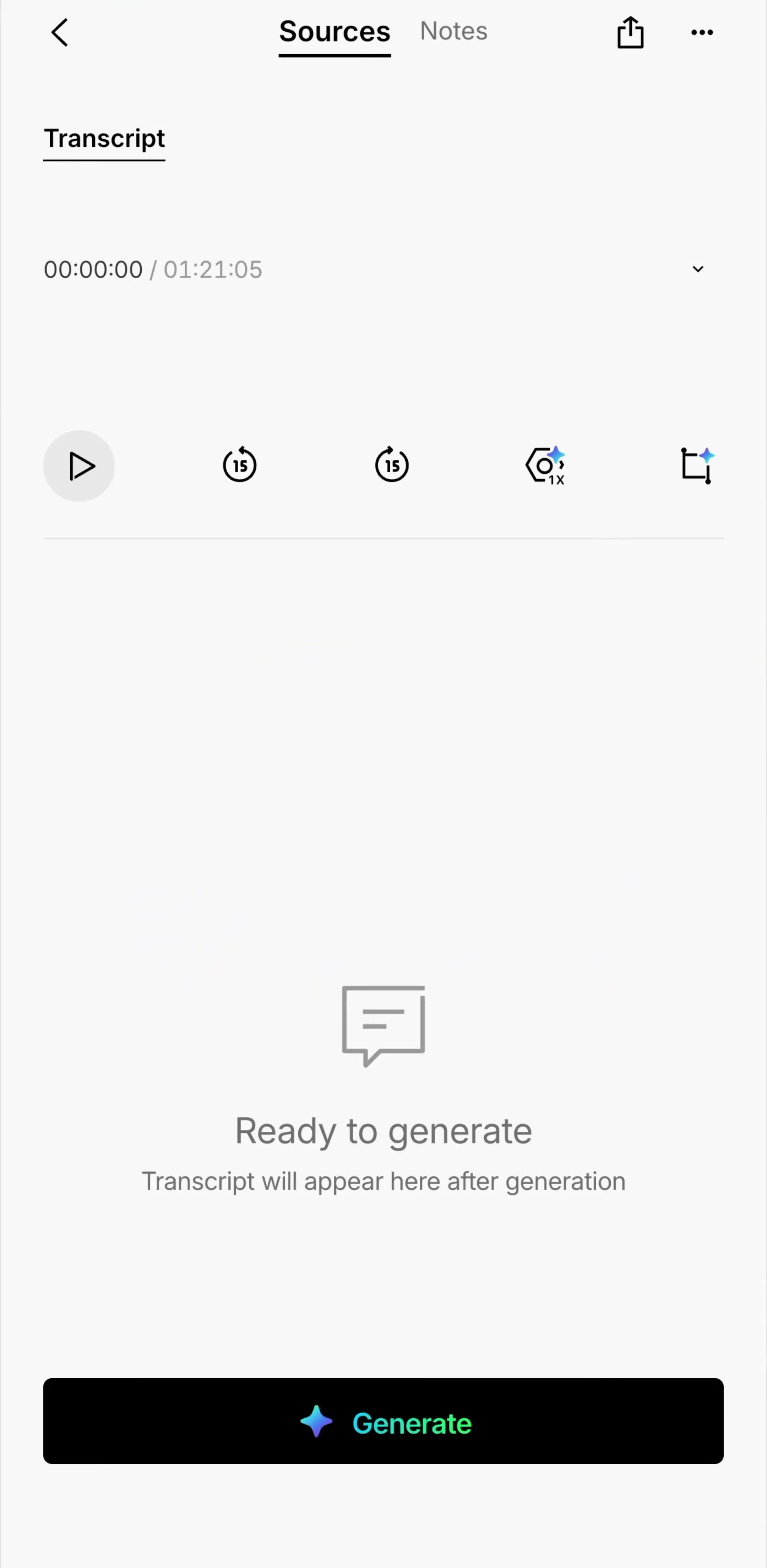
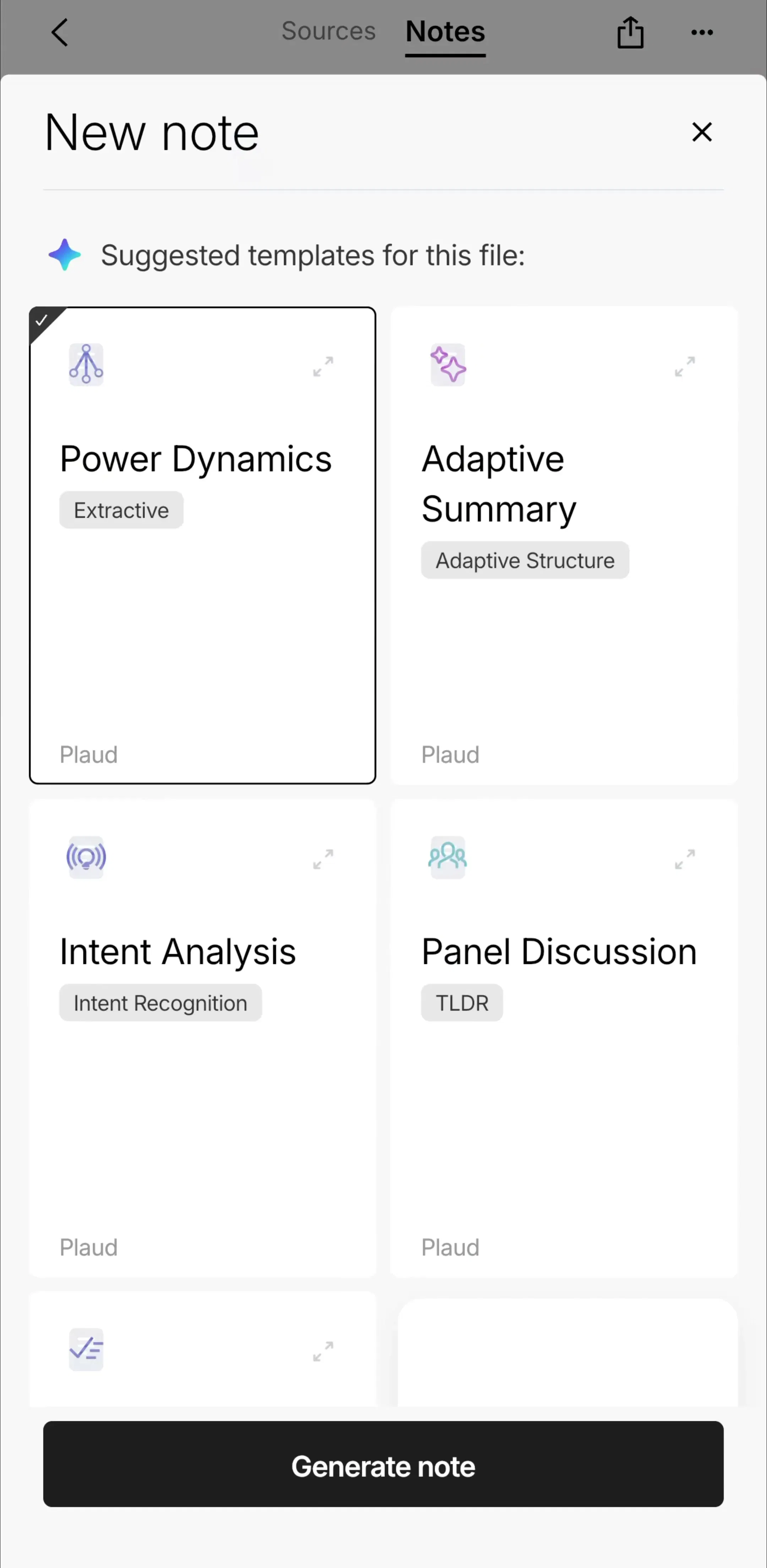
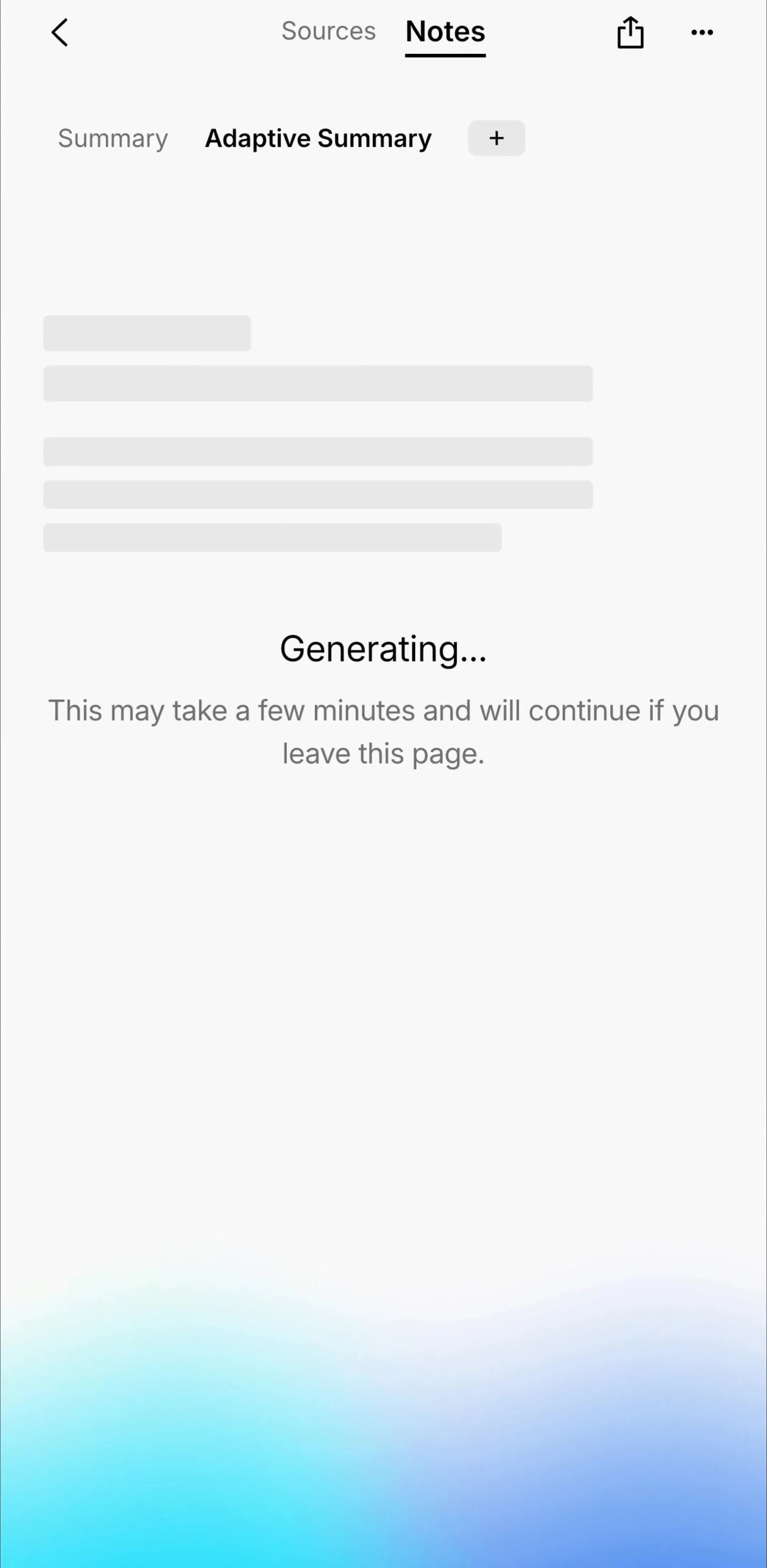
Upload the states in order and describe how they connect: “tapping Generate opens the template sheet; choosing one shows the loading screen, then the summary.” Those three screens describe one feature end to end. That is the unit worth rebuilding.
The structure is fair game, and it is most of the value. From the Plaud screens you can lift the layout (segmented Sources and Notes tabs at the top, one primary action pinned to the bottom), the hierarchy (one black button per screen, everything else quiet), the card grid for choosing a template, and the existence of an empty state and a loading state at all. These are common mobile patterns. You will find the same pinned bottom button across our button examples and the same reassuring wait copy in our empty state guide.
Ladder(est. $6M/mo) shows the two kinds of thing that should never make it from a screenshot into your code. The first is brand: the lifestyle photo, the logo, the lime “Free pass” card and the exact copy belong to Ladder. Keep the idea of a trial reminder screen, then write your own words over your own imagery.
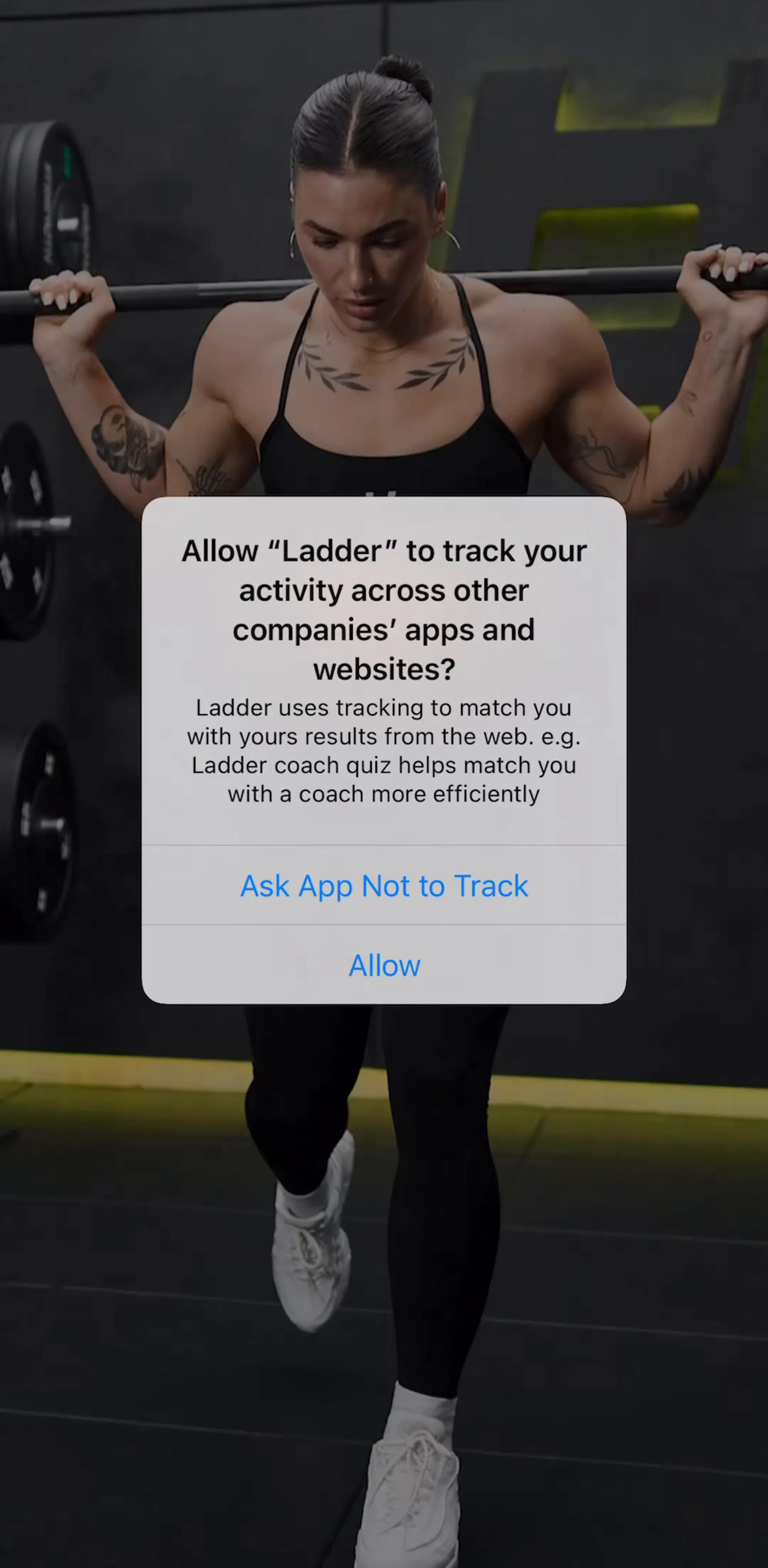
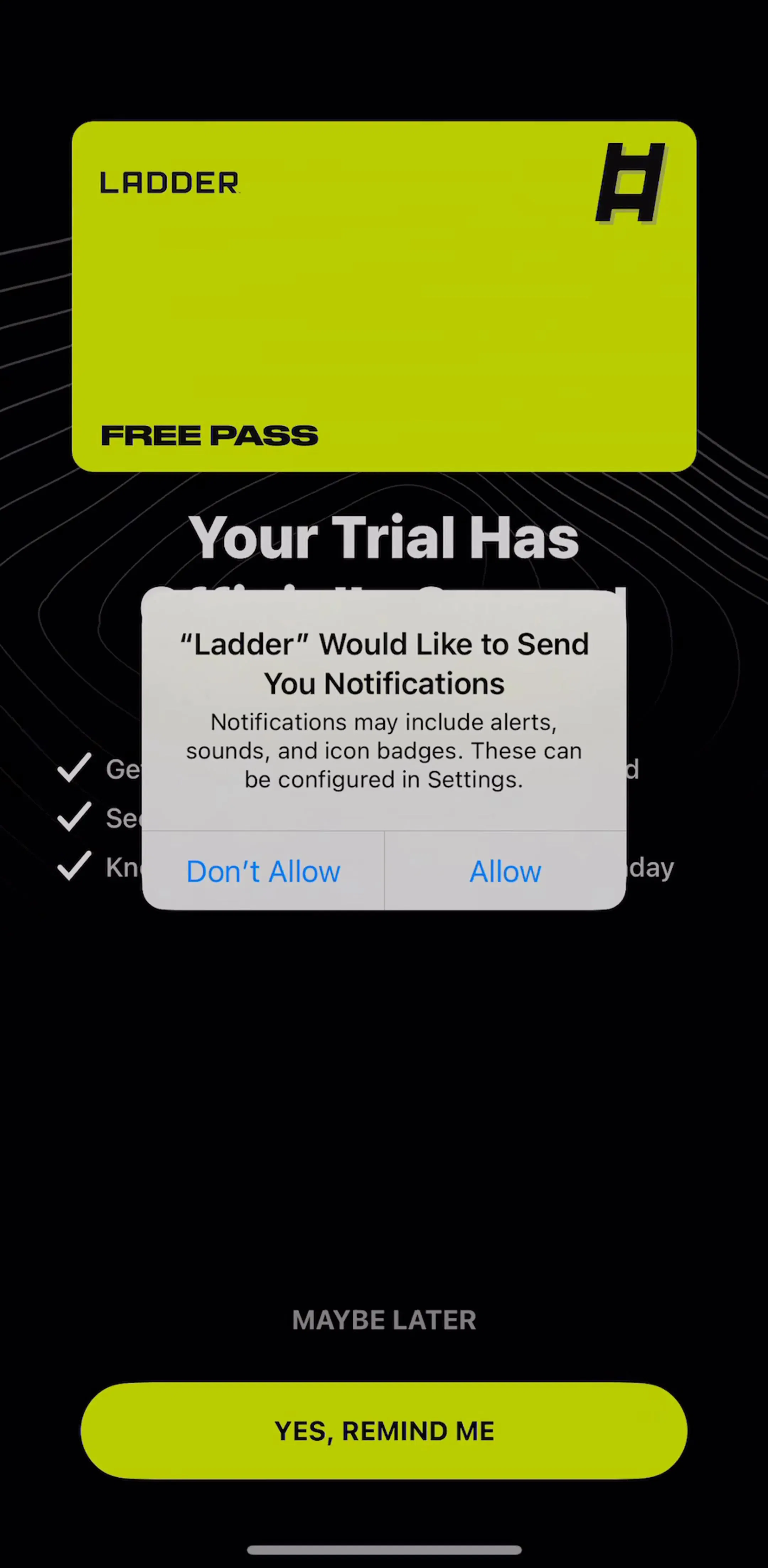
The second is iOS itself. Two of these three screens are covered by system dialogs, the tracking prompt and the notifications prompt. Your app does not draw those; iOS does, when your code requests the permission. A screenshot tool that sees one will try to build a fake copy as part of your screen. Crop system dialogs out before you upload, and note in your description where the real permission request should fire. Our permission priming breakdown covers when shipping apps ask.
Everything that happens between screens is invisible in a picture. A screenshot does not say where each button goes, what the list looks like with no data or with a thousand rows, what happens when the network drops mid-generation, or which screens sit behind a paywall. It also says nothing about the data model: Plaud’s template grid implies templates are stored somewhere and suggested per file, but the image cannot tell a tool how. Write these down in plain sentences before you generate. They are the difference between a clickable mockup and an app.
Once you have the right screens, cropped and described, the conversion step is fast. ShipNative takes a screenshot plus a short description and generates a React Native (Expo) project that runs on iOS and Android, with a live preview you can tap through and change in plain English. The code is a standard Expo project you can download and keep building. Full disclosure: ShipNative is made by the same team as mobileappdesign, which is why the two fit together this neatly.
The workflow that works: find a flow in the library from an app at the revenue level you want, upload its states in order, describe the transitions and data, then replace every brand asset with your own before you ship.
A screenshot is a strong starting point for layout and hierarchy, and a weak one for everything else. Start from a full flow, keep the structure, drop the brand and the system dialogs, and spell out what the pictures cannot show. Every flow in the library sits next to the app’s estimated revenue and downloads, so the screens you start from are ones that already ship at scale.
A note on the numbers: revenue figures cited here are third-party monthly estimates from our library, useful for comparing magnitude, not audited financials.
Yes. Screenshot to code tools read a UI image, identify the components (tab bars, cards, lists, buttons, text fields) and generate source code for them. For mobile, the useful ones output a real framework project such as React Native with Expo rather than an HTML imitation, so the result runs on a phone. What they cannot recover is anything the image does not show: other states, real data, navigation targets and error handling.
Layout ideas and common interface patterns (a tab bar, a card grid, a paywall with a plan picker) are not ownable, and every app in our library reuses them. Logos, illustrations, photography, brand names, distinctive copy and trade dress are. Rebuild the structure, then replace every asset and line of copy with your own. This is general guidance, not legal advice.
A full, high resolution screen of standard mobile UI works best. Crop out iOS system dialogs, use one screen per upload starting with the main screen, and add a sentence describing what each control does. Screens built on custom illustration or dark-on-dark styling convert less reliably than plain lists, cards and forms.
The mobileappdesign library holds thousands of revenue-verified iOS apps, captured flow by flow, with estimated revenue and downloads next to every app. You can browse by pattern, such as onboarding or paywalls, and see every state of a flow rather than a single marketing shot.
Browse every flow of thousands of revenue-verified iOS apps, with estimated revenue and downloads next to each one.
Browse onboarding screens